Firefox PDF ਐਡੀਟਰ ਨਾਲ ਮੁਫ਼ਤ ਵਿੱਚ PDF ਨੂੰ ਸੋਧੋ
ਜੇ ਤੁਹਾਨੂੰ PDF ਦਸਤਾਵੇਜ਼ ਵਿੱਚ ਕੁਝ ਜੋੜਨ ਦੀ ਲੋੜ ਹੈ ਤਾਂ ਤੁਸੀਂ PDF ਨਾਲ ਆਨਲਾਈਨ ਇੰਝ ਕਰ ਸਕਦੇ ਹੋ। Firefox ਵਿੱਚ PDF ਖੋਲ੍ਹੋ ਅਤੇ ਆਪਣੇ ਦਸਤਾਵੇਜ਼ ਵਿੱਚ ਤਬਦੀਲੀਆਂ ਕਰਨ ਲਈ ਉੱਪਰੀ ਸੱਜੇ ਕੋਨੇ ਵਿੱਚ ਲਿਖਤ ਜਾਂ ਵਾਹਉਣ ਵਾਲੇ ਬਟਨਾਂ ਨੂੰ ਕਲਿੱਕ ਕਰੋ। ਆਪਣੀਆਂ ਤਬਦੀਲੀਆਂ ਨੂੰ ਸੰਭਾਲਣ ਲਈ ਫ਼ਾਇਲ ਨੂੰ ਸੰਭਾਲੋ।
ਬਿਨਾਂ ਪਰਿੰਟ ਅਤੇ ਸਕੈਨ ਕੀਤ ਬਿਨਾਂ ਆਨਲਾਈਨ ਫਾਰਮਾਂ ਨੂੰ ਭਰੋ
ਸਾਨੂੰ ਸਭ ਨੂੰ ਇਹ ਦੇਖਣਾ ਪੈਂਦਾ ਹੈ: ਤੁਹਾਨੂੰ ਫਾਰਮ ਭਰਨ ਦੀ ਲੋੜ ਪੈ ਸਕਦੀ ਹੈ, ਜੋ ਕਿ PDF ਹੈ, ਪਰ ਇਹ ਸੋਧਯੋਗ ਨਹੀਂ ਹੈ। ਪਹਿਲਾਂ ਤੁਹਾਡੇ ਕੋਲ ਰੁੱਖ ਨੂੰ ਵੱਢ ਕੇ ਬਣਾਏ ਪੇਪਰ ਉੱਤੇ ਪਰਿੰਟ ਕਰਕੇ, ਸਿਆਹੀ ਨਾਲ ਲਿਖਣਾ ਅਤੇ ਫੇਰ ਇਸ ਨੂੰ ਆਪਣੇ ਕੰਪਿਊਟਰ ਉੱਤੇ ਸਕੈਨ ਕਰਨ ਦੀ ਹੀ ਚੋਣ ਸੀ।
ਹੁਣ ਨਹੀਂ! ਹੁਣ ਤੁਸੀਂ Firefox ਨਾਲ PDF ਨੂੰ ਆਨਲਾਈਨ ਹੀ ਸੋਧ ਸਕਦੇ ਹੋ, ਇਸ ਨੂੰ ਸੰਭਾਲ ਸਕਦੇ ਹੋ ਅਤੇ ਆਪਣੇ ਕੰਪਿਊਟਰ ਤੋਂ ਹੀ ਇਸ ਨੂੰ ਈਮੇਲ ਕਰ ਸਕਦੇ ਹੋ।
ਲਿਖਤ ਨੂੰ ਜੋੜੋ
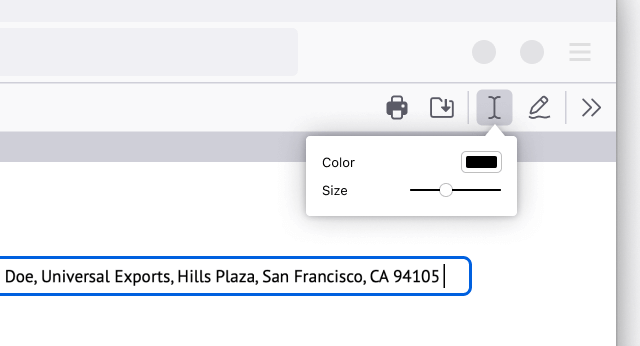
Firefox ਵਿੱਚ PDF ਨੂੰ ਖੋਲ੍ਹੋ। ਦਸਤਾਵੇਜ਼ ਵਿੱਚ ਜਿੱਥੇ ਵੀ ਤੁਸੀਂ ਲਿਖਤ ਜੋੜਨੀ ਚਾਹੁੰਦੇ ਹੋ, ਉਸ ਨੂੰ ਚੁਣਨ ਤੋਂ ਪਹਿਲਾਂ ਰੰਗ ਅਤੇ ਲਿਖਤ ਦੇ ਆਕਾਰ ਨੂੰ ਚੁਣਨ ਲਈ ਲਿਖਤ ਬਟਨ ਨੂੰ ਕਲਿੱਕ ਕਰੋ। ਐਨਾ ਸੌਖਾ ਹੈ!
ਡਰਾਇੰਗਾਂ ਜੋੜੋ
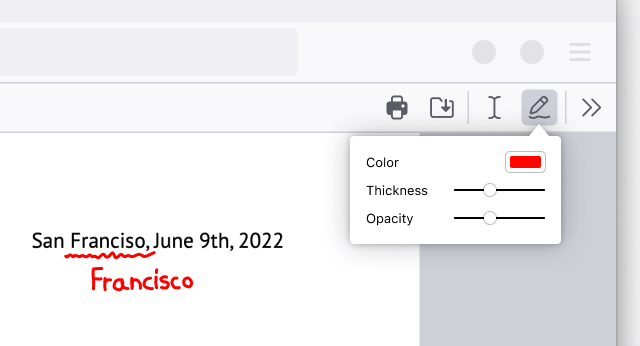
Open the PDF in Firefox. Click the Draw icon to choose a color, thickness and opacity before then being able to draw on the document.
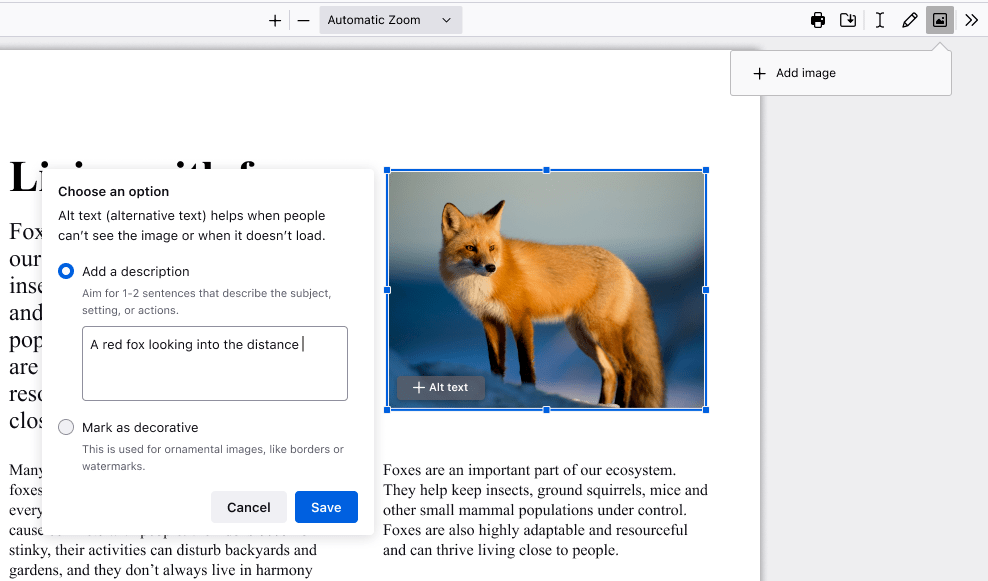
ਬਦਲਵੇਂ ਲਿਖਤ ਨਾਲ ਚਿੱਤਰ ਜੋੜੋ
Open the PDF in Firefox. Click the image icon, which will then prompt you to upload an image. Adjust size and placement of your image as needed. Click the “+Alt text” button on the image to add a photo description to make your PDF more accessible.
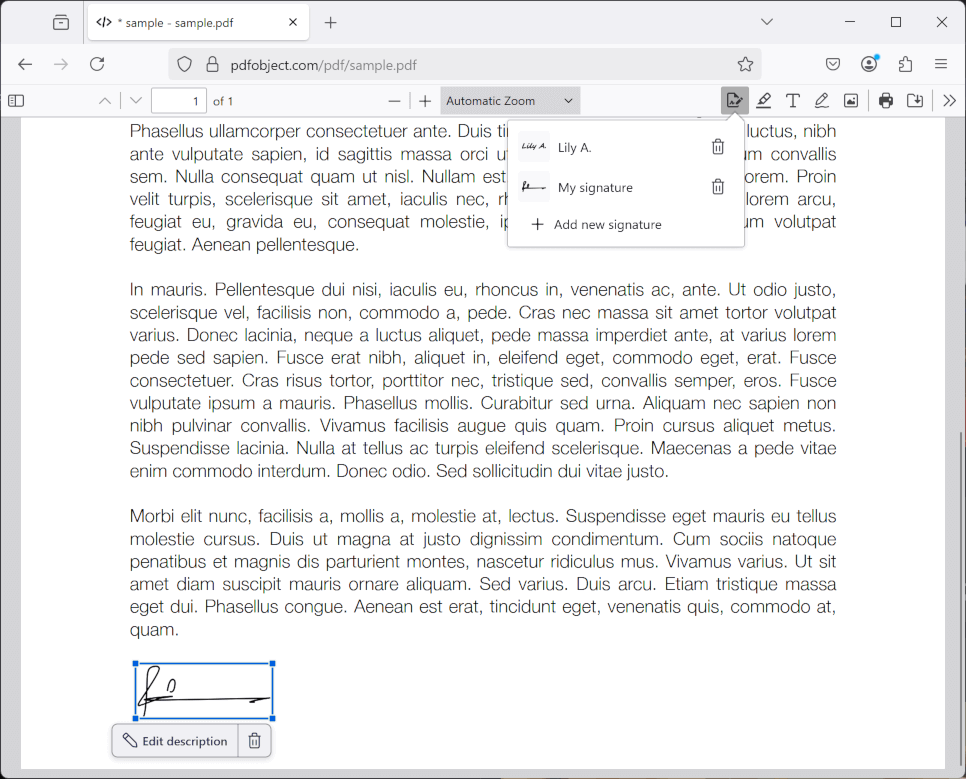
ਦਸਤਖ਼ਤ ਬਣਾਓ
Open the PDF in Firefox. Click the signature icon and then click “Add new signature”. Choose between Type, Draw or Image, and click the Add button to insert. You can also save your signatures and use them again later.
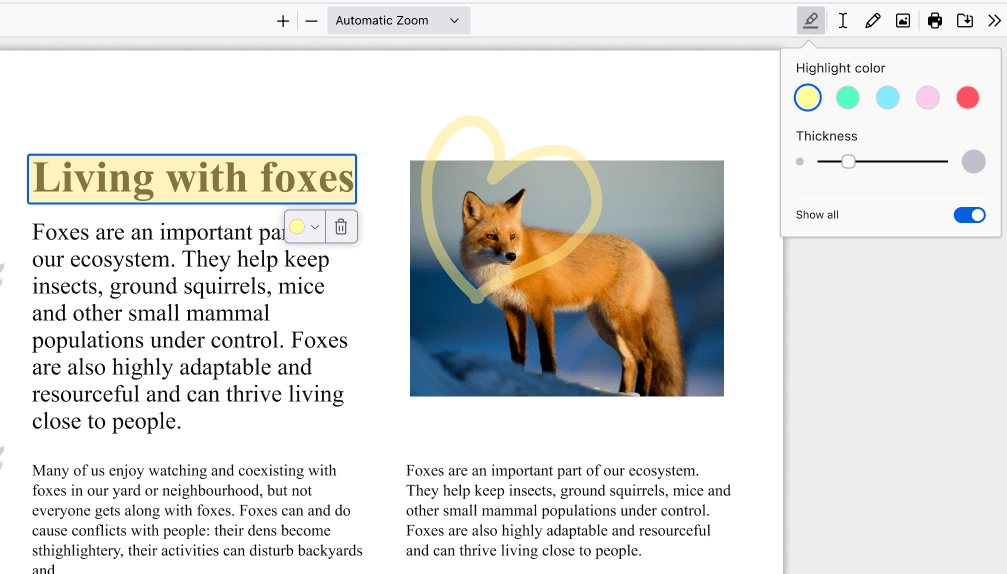
ਹਾਈਲਾਈਟ ਕਰੋ
Open the PDF in Firefox. Select the text you want to highlight, then click the highlight icon that appears below your selection, or right click to find the highlight option in the context menu. Click the icon in the top right to freehand highlight sections of the PDF.
ਟਿੱਪਣੀਆਂ ਨੂੰ ਜੋੜੋ
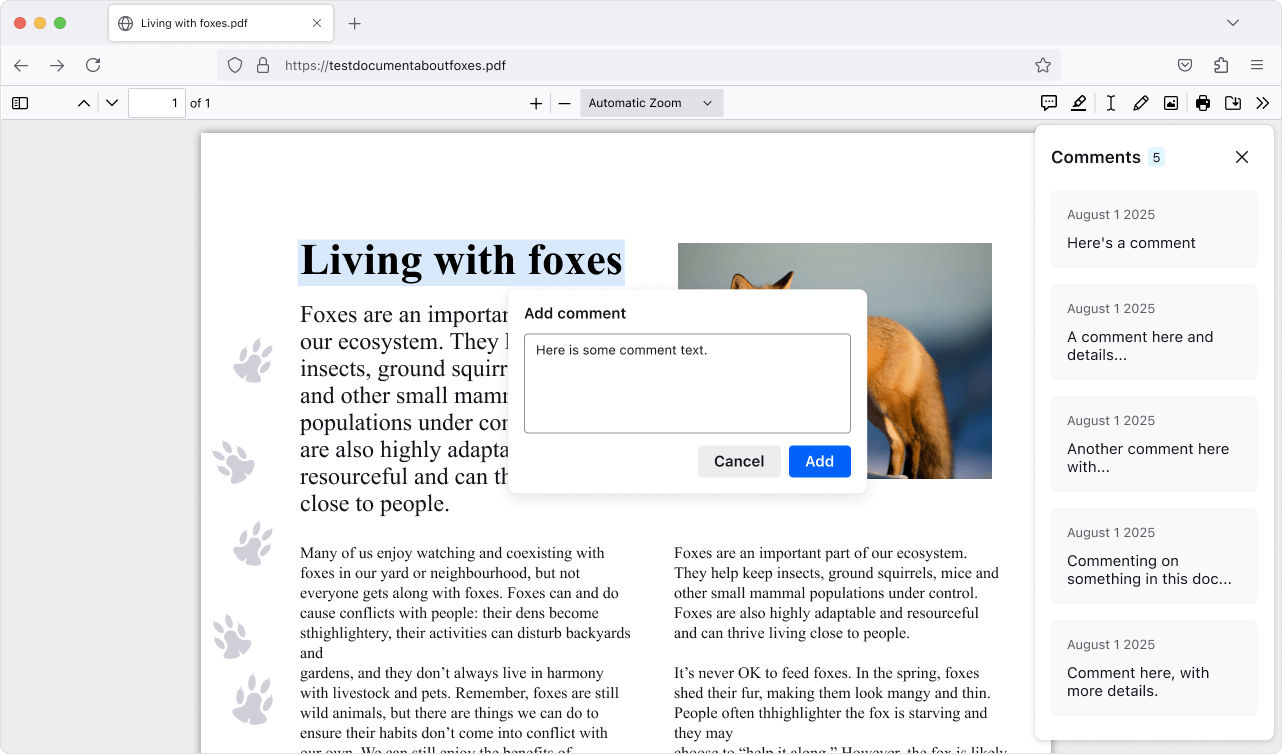
Open the PDF in Firefox. Create a highlight, then click the Comment icon that appears below your selection, type your comment, and click Add to save. Lots of comments in a PDF? Click the Comment icon in the top right to open the sidebar and jump to the one you need.