Embosako’i marandurenda PDF rei Firefox PDF mbosako’iha ndive
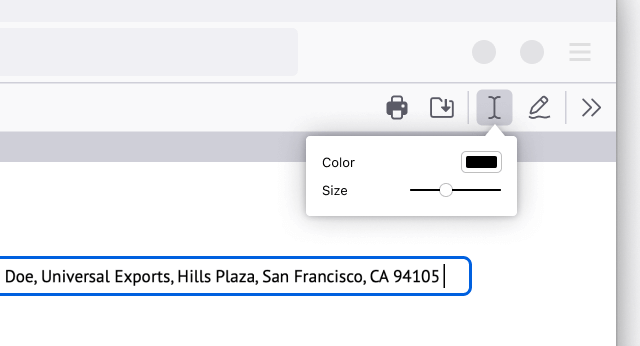
If you need to add stuff to a PDF document, now you can do that online with Firefox. Open the PDF in Firefox and click the Text or Draw buttons in the upper right corner to make changes to your document. Download the file to save it with your changes.
Ehaipa myanyhẽha ñandutípe emonguatia ha emoha’ãnga’ỹre
Opavave jahasava’ekue ko’ãva: ejapopa myanyhẽha oĩva PDF ramo, hákatu ndojehaikuaáiva. Tapykuete gotyo, embokuatiaraẽmanteva’erã, ehai hi’ári ha upéi emoha’ãngajey ne mohendaha rupive.
¡Anivéma! Ko’ág̃a, ejapokuaáva ha’e PDF mbosako’i ñandutípe Firefox ndive, eñongatu ha emondo ñanduti veve ne mohendaha guive.
Embojuapy moñe’ẽrã
Embojuruja PDF Firefox ndive. Eikutu votõ Moñe’ẽrã eiporavo hag̃ua sa’y ha moñe’ẽrã tuichakue eiporavo mboyve moõitépa embojuapyseve moñe’ẽrã. ¡Hasy’ỹre!
Embojuaju ta’ãnga
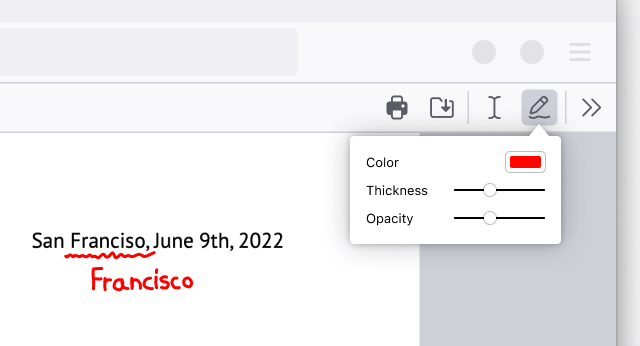
Open the PDF in Firefox. Click the Draw icon to choose a color, thickness and opacity before then being able to draw on the document.
Embojuaju moñe’ẽrã mokõiha ndive
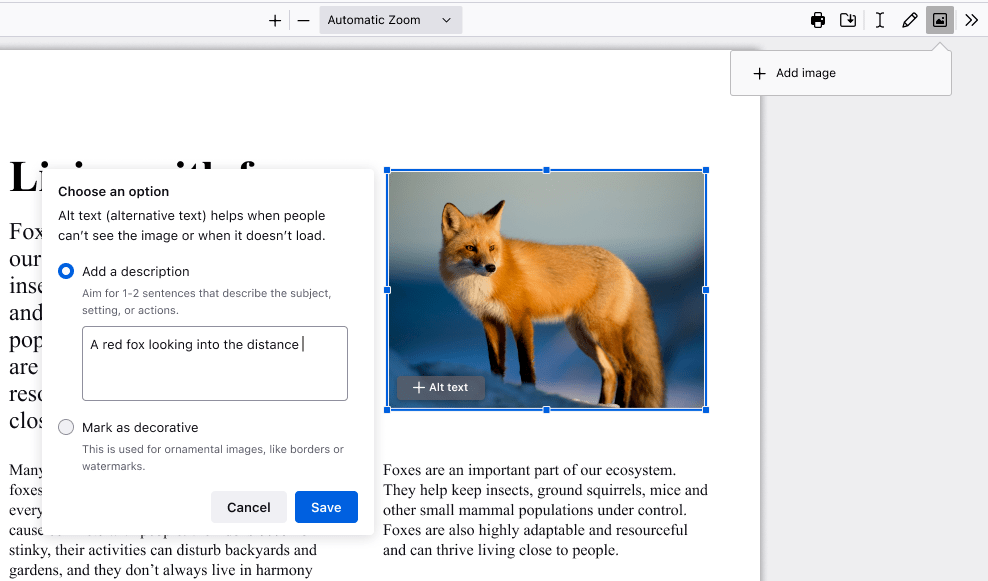
Embojuruja PDF Firefox ndive. Eikutu ta’ãnga’i, ojerurétava ehupi hag̃ua ta’ãnga. Ehecha tuichakue ha mba’éichapa emoĩta ta’ãnga eipotaháicha. Eikutu pe votõ "+Moñe’ẽrã mokõiháva" ta’ãngápe embojuaju hag̃ua ta’ãnga ñemoñe’ẽ ha ejepo nde PDF iporãve hag̃uáicha.
Emoheñói teraguapy
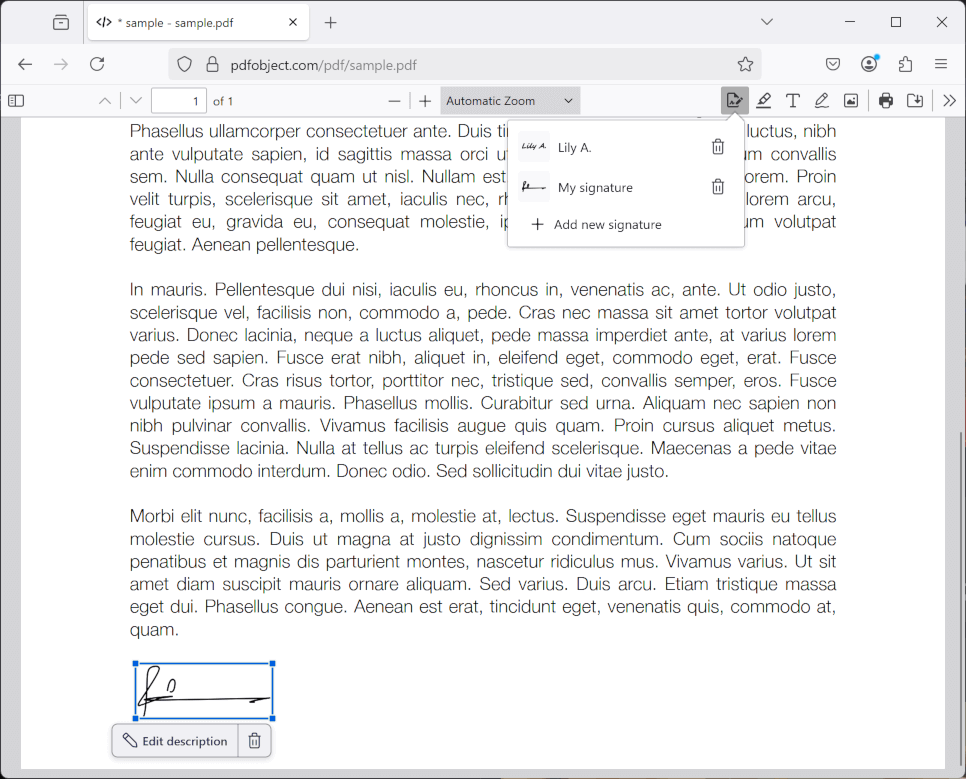
Open the PDF in Firefox. Click the signature icon and then click “Add new signature”. Choose between Type, Draw or Image, and click the Add button to insert. You can also save your signatures and use them again later.
Emoheñói hechapyrãva
Embojuruja PDF Firefox ndive. Eiporavo moñe’ẽrã embosa’yséva, upéi eikutu ta’ãnga’i mbosa’ypyre poravoha iñapysẽvape. Eikutu pe ta’ãnga’i yvategua akatúa gotyo embosa’y hag̃ua PDF vore nde po rupive.
Embojuaju Je’erei
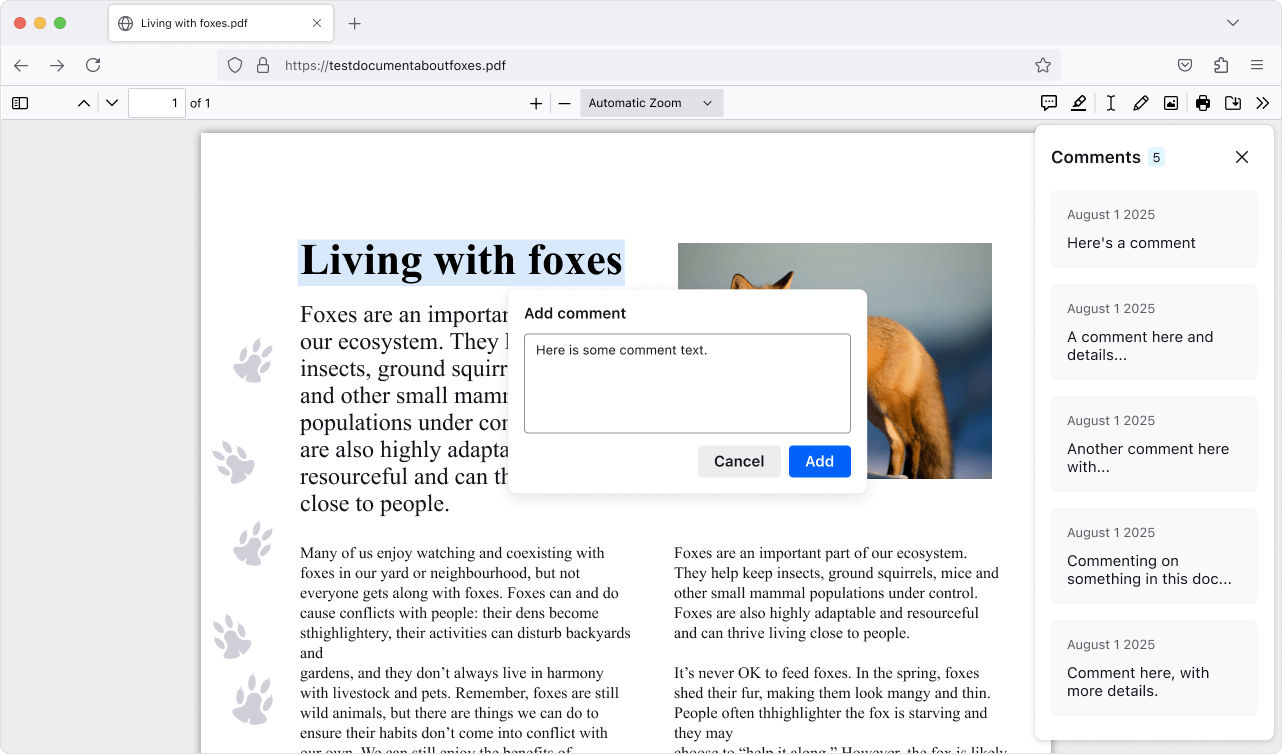
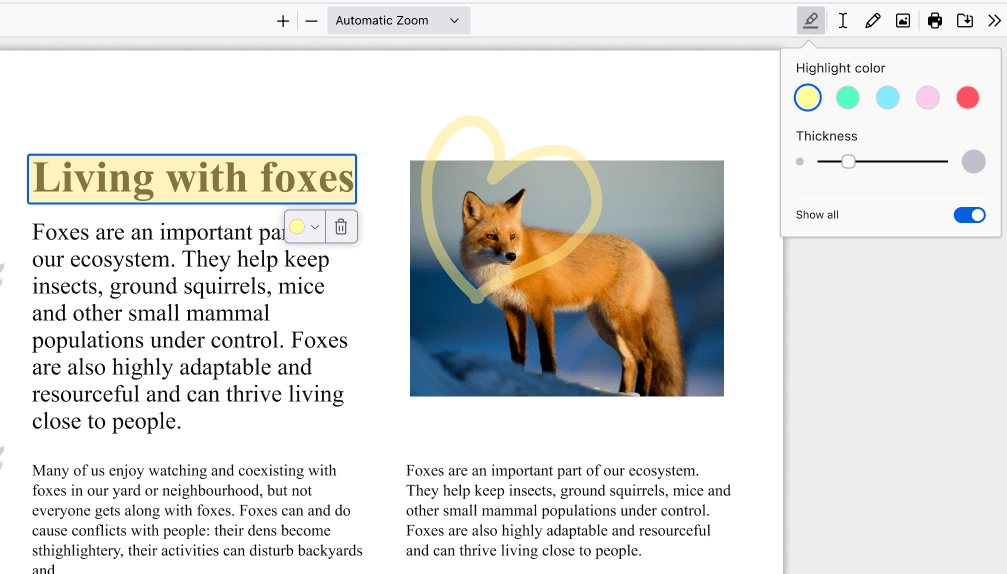
Open the PDF in Firefox. Create a highlight, then click the Comment icon that appears below your selection, type your comment, and click Add to save. Lots of comments in a PDF? Click the Comment icon in the top right to open the sidebar and jump to the one you need.