Muokkaa PDF-tiedostoja ilmaiseksi Firefoxin PDF-muokkaimella
Jos sinun tarvitsee lisätä jotain PDF-asiakirjaan, voit tehdä sen käyttämällä Firefoxia. Avaa PDF-tiedosto Firefoxissa ja tee muutoksia asiakirjaan napsauttamalla Teksti- tai Piirrä-painiketta oikeassa yläkulmassa. Lataa tiedosto ja tallenna se muutosten kanssa.
Täytä lomakkeita verkossa ilman tulostamista ja skannausta
Olemme kaikki kohdanneet sen: sinun on täytettävä PDF-lomake, mutta sitä ei voi muokata. Aiemmin ainoa vaihtoehto oli tulostaa se kuolleeseen puuhun, lisätä asioita musteella ja skannata se sitten takaisin tietokoneelle.
Ei enää! Nyt sinun tarvitsee vain muokata PDF-tiedostoa Firefoxilla, tallentaa muokattu tiedosto ja lähettää se sähköpostitse tietokoneeltasi.
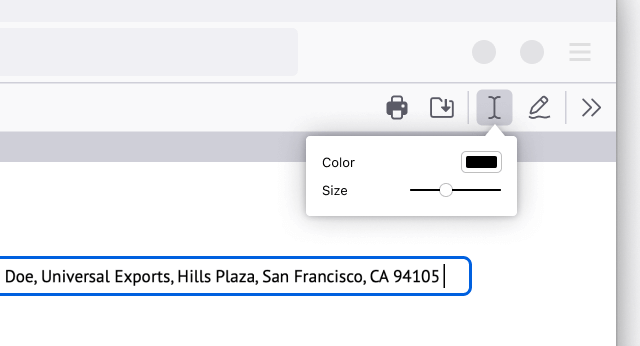
Lisää tekstiä
Avaa PDF Firefoxissa. Napsauta Teksti-painiketta valitaksesi värin ja tekstin koon, ennen kuin valitset mihin kohtaan asiakirjaa haluat lisätä tekstiä. Se on niin helppoa!
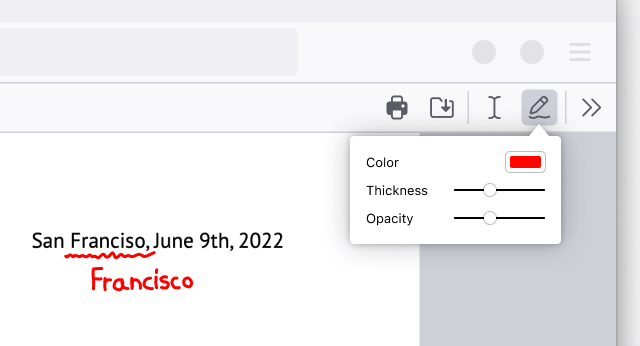
Add drawings
Open the PDF in Firefox. Click the Draw icon to choose a color, thickness and opacity before then being able to draw on the document.
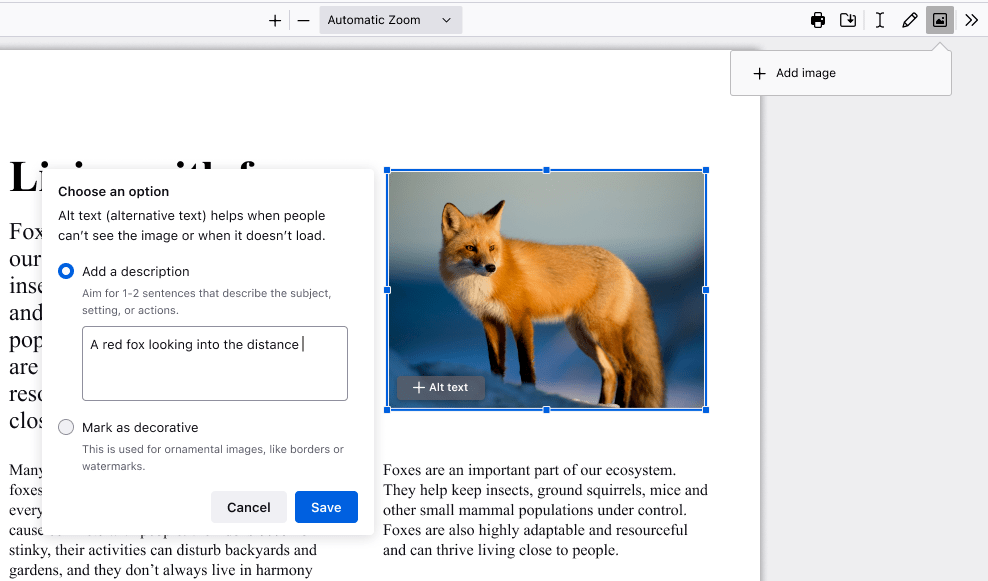
Lisää kuva vaihtoehtoisella tekstillä
Open the PDF in Firefox. Click the image icon, which will then prompt you to upload an image. Adjust size and placement of your image as needed. Click the “+Alt text” button on the image to add a photo description to make your PDF more accessible.
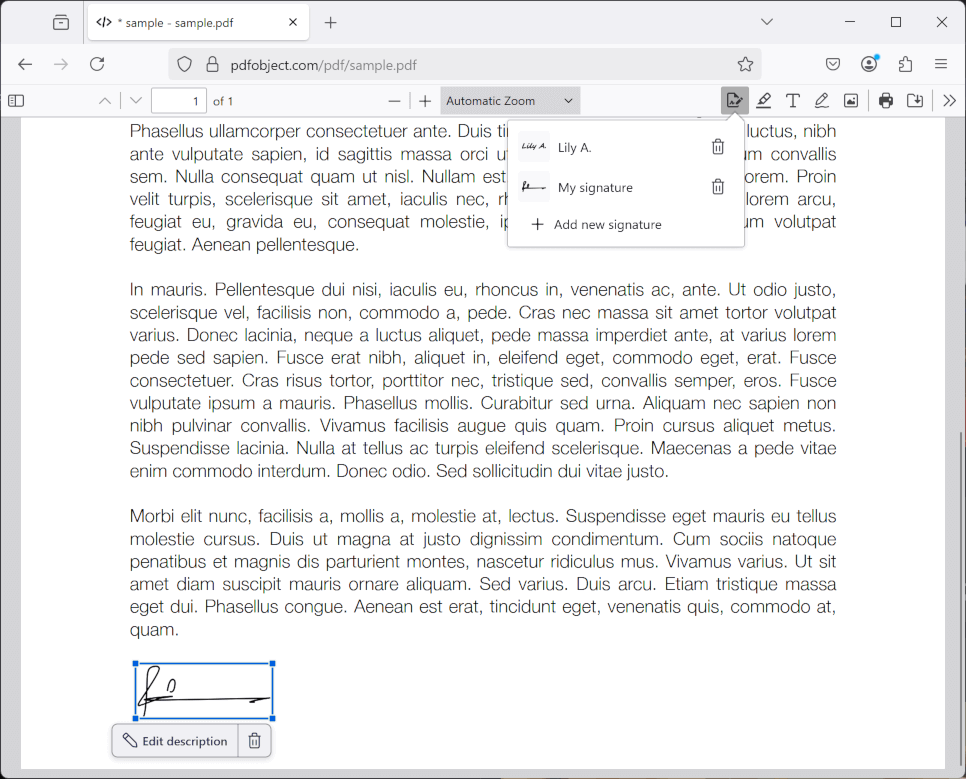
Create a signature
Open the PDF in Firefox. Click the signature icon and then click “Add new signature”. Choose between Type, Draw or Image, and click the Add button to insert. You can also save your signatures and use them again later.
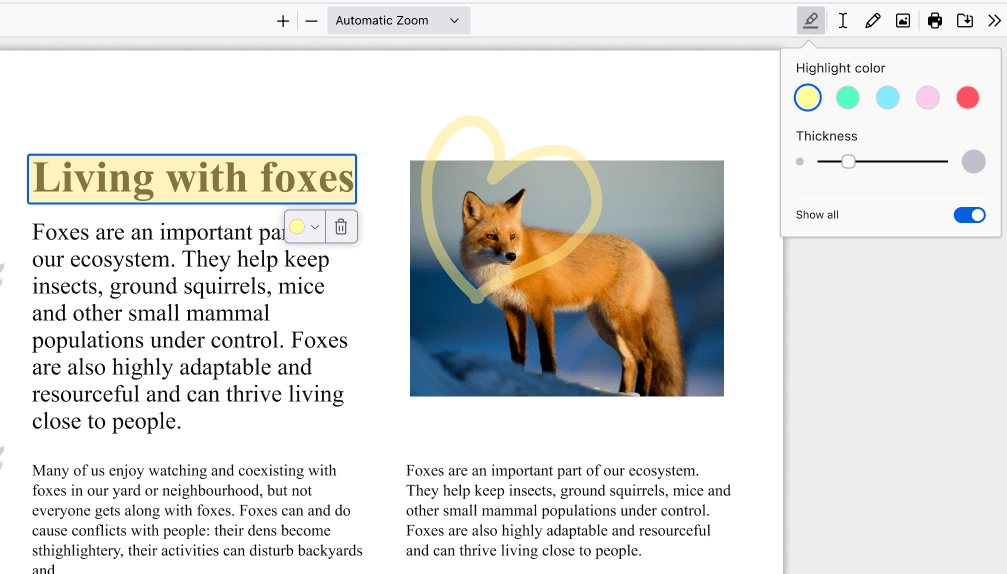
Luo korostus
Open the PDF in Firefox. Select the text you want to highlight, then click the highlight icon that appears below your selection, or right click to find the highlight option in the context menu. Click the icon in the top right to freehand highlight sections of the PDF.
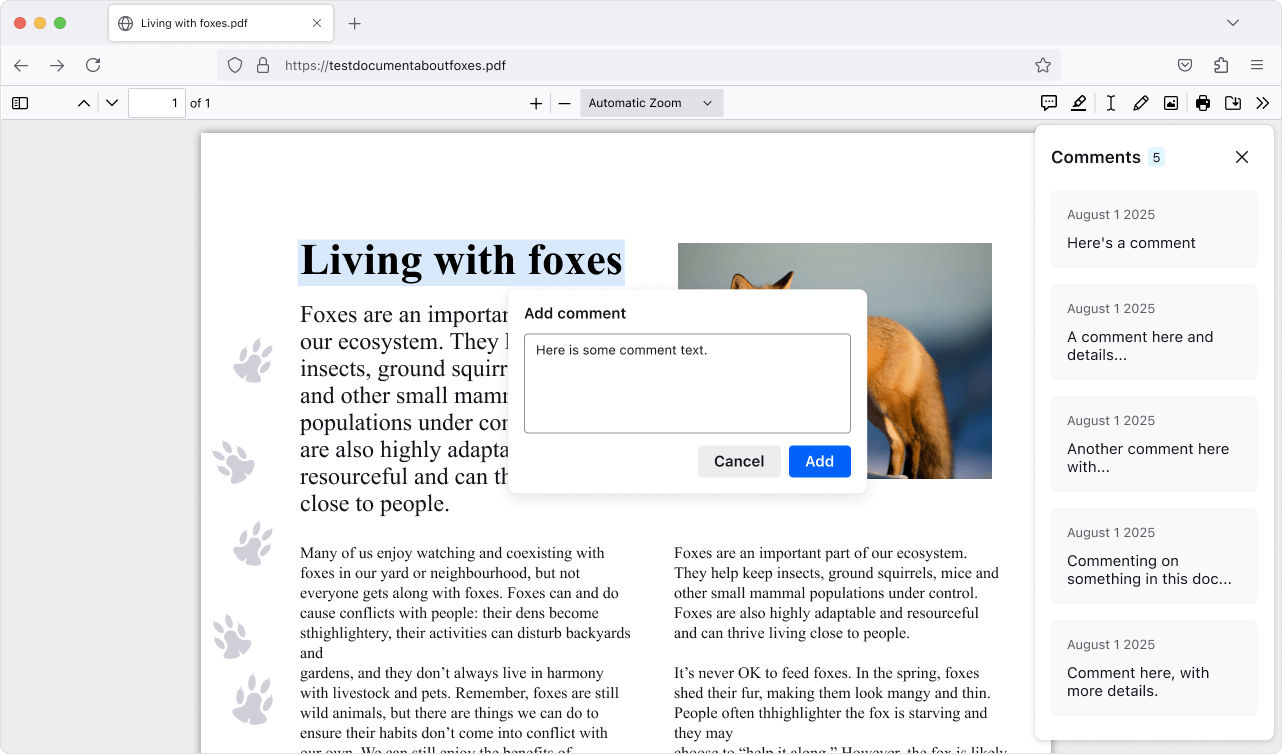
Add comments
Open the PDF in Firefox. Create a highlight, then click the Comment icon that appears below your selection, type your comment, and click Add to save. Lots of comments in a PDF? Click the Comment icon in the top right to open the sidebar and jump to the one you need.