Firefox
Your Firefox has been updated

What’s New | Firefox 151

New: Your VPN has places to be

Our free, built-in VPN now lets you set your browsing location, giving you more privacy and control when you’re away from home or the office.


Illustration of a browser feature interface on a purple background. A QR code appears in the top-right corner above a floating settings panel labeled “AI controls.” The panel includes a “Block AI enhancements” toggle switch turned on, with colorful abstra

Firefox mobile

AI on your terms

AI on? Or AI off? Or something in between? With AI controls now available on mobile devices, Firefox gives you one single place to easily manage, customize, or completely block AI features.

Try AI controls on Firefox mobile—scan to install.

Stylized Firefox-inspired illustration of a flame-shaped fox in orange, pink, and yellow flowing around a purple keyhole on a light background, symbolizing privacy, protection, or secure access.

Protection

A new era of Firefox security

Firefox used advanced AI to uncover and fix hundreds of hidden security vulnerabilities before they could become threats.

Illustration of two purple translation interface panels showing language selections and translated text, with a “Translate” label on a soft light background.

Translations

Lost in translation? Not anymore.

Translate full pages or selected text right in Firefox — privately, on your device. Your translation data isn’t sent to the cloud. Just right-click selected text or use the translate icon in the address bar.

Tame your tabs

When tabs start piling up, Firefox gives you smart ways to manage the mess.

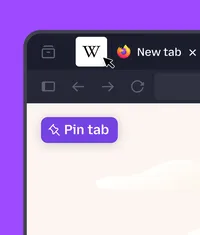
Illustration of a browser window with a pinned tab icon highlighted and a “Pin tab” label displayed on a purple background.

Pin tabs

Keep sites like email or calendar open, compact, and always in view. Right-click any tab and choose Pin Tab.

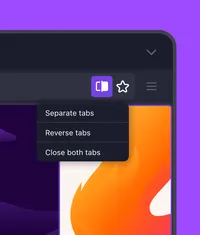
Illustration of a browser window with a tab management menu open, displaying options including “Separate tabs,” “Reverse tabs,” and “Close both tabs” on a purple background.

Combine tabs

Work with two tabs side by side in one window. Click the Split View icon to separate, reverse or close both tabs.

Keep up with all things Firefox

Get how-tos, advice and news to make your Firefox experience work best for you.