
Firefox
Your download should begin automatically. Didn’t work? Try downloading again.

Thank you for downloading Firefox!

Follow these steps to get Firefox set up.

1
The Firefox Installer.exe file icon. The Firefox Installer.exe file icon.

Open Firefox Installer.exe from your Downloads folder.

2
Progress bar, partly filled. Progress bar, partly filled. Progress bar, partly filled. Progress bar, partly filled.

Run the installer and follow the on-screen instructions.

3

Open Firefox to start browsing.

Thank you for downloading Firefox!

Follow these steps to get Firefox set up.

1
Firefox.dmg file icon. Firefox.dmg file icon. Firefox.dmg file icon. Firefox.dmg file icon.

Open Firefox.dmg from your Downloads folder.

2
Dragging Firefox into the Applications folder. Dragging Firefox into the Applications folder. Dragging Firefox into the Applications folder. Dragging Firefox into the Applications folder.

Drag the Firefox icon into your Applications folder.

3
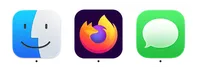
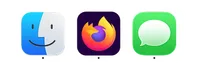
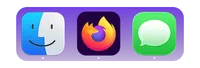
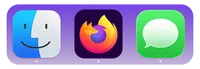
Firefox in the Dock, between Finder and Messages. Firefox in the Dock, between Finder and Messages. Firefox in the Dock, between Finder and Messages. Firefox in the Dock, between Finder and Messages.

Open your Applications folder and drag Firefox to your dock.


Almost there!
Select a download
option below.


Your download was interrupted.
But all is not lost.


Your download was interrupted.
But all is not lost.

If you see a prompt stating the app you’re trying to install isn’t a Microsoft-verified app, click “Install anyway” or change app recommendation settings.

Visit Support for More Details

Download for Linux 64-bit Download for Linux ARM64

Using Debian, Ubuntu or any Debian-based distribution?
You can set up our APT repository instead.

Firefox Privacy Notice

Your system may not meet the requirements for Firefox, but you can try one of these versions.

Your system may not meet the requirements for Firefox, but you can try one of these versions.